How to watermark a batch of photos in one go
Watermarking photos one at a time is slow, and the marks never quite match. A batch applies one design to the whole set, and with a little preparation every copy comes out right the first time.
Updated · 5 min read
Get the set ready
Put the finished photos for one job in a single folder and take out the rejects first, since everything you select gets marked. Mixed formats are fine: JPG, PNG, WebP, AVIF and HEIC can go in the same batch, as can portrait and landscape shots.
Decide where the copies are going before you start. Photos for a website or social media don't need full resolution, while prints and client deliveries do. That one decision sets your size and format later.
If you shoot RAW, export JPEG or HEIC files from your editor first, with edits and crops already done. Watermarking should be the last step, after everything else is final.
- Edits and crops are final.
- Rejects are out of the folder.
- You know whether the copies are for the web, print or a client.
- Your logo file or wording is ready.
Build one design that fits every shape
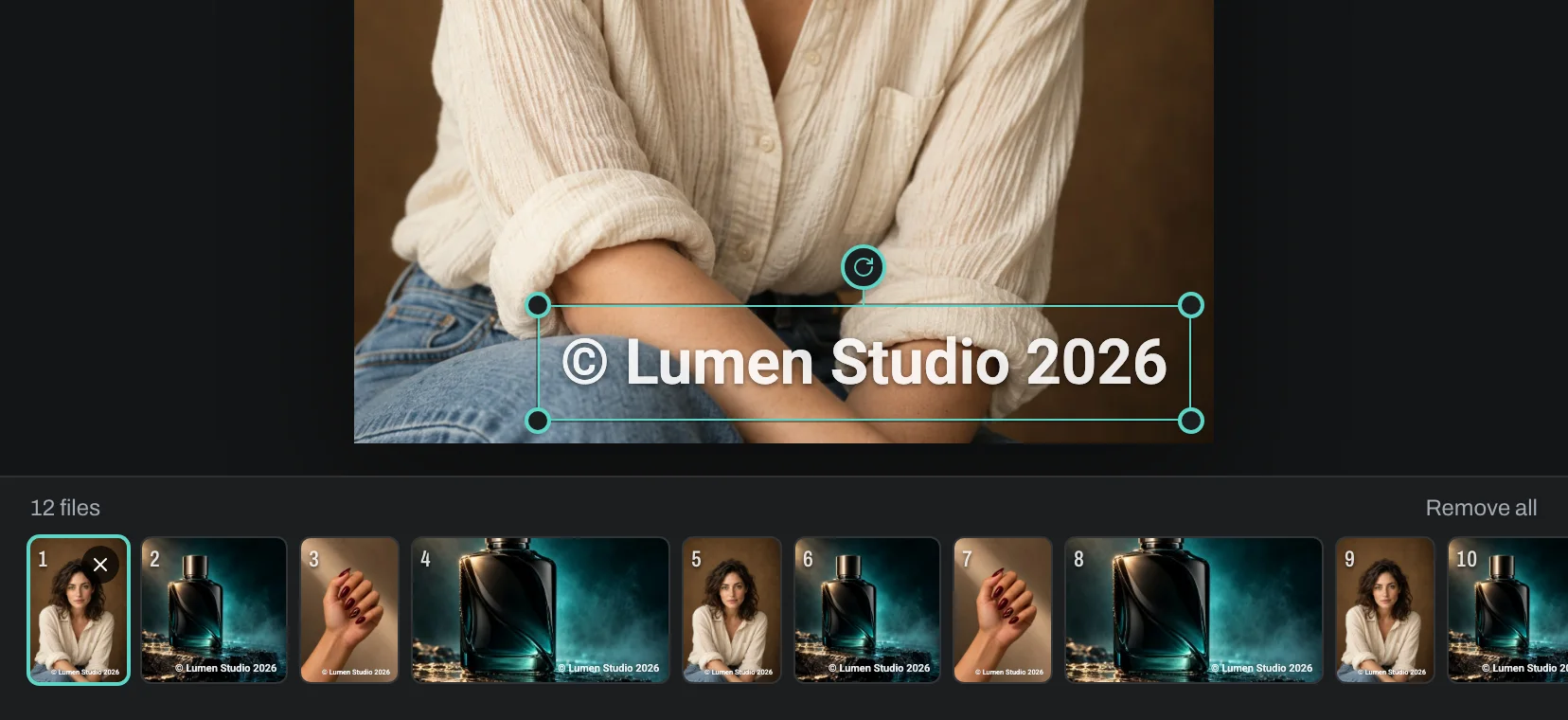
Use Choose photos and select the whole set at once; in the file picker, Ctrl+A (Cmd+A on a Mac) selects everything in a folder. The free plan takes up to 10 photos per export, with as many exports as you like, and Pro takes up to 500. The photos are processed in your browser and never uploaded.
Set up the watermark on a typical photo with Add text or Add logo, the Position grid, Size and Opacity. Sizes and margins are measured from each photo's shorter edge, so a mark that looks right on a landscape shot has the same weight on a portrait or a square one.
A batch design has to work on photos you aren't looking at. Don't rely on a dark patch or an empty corner that only the current photo has. A corner with a margin, or text with a Shadow or Label behind it, behaves predictably across a whole set.
Design on a photo that sits in the middle of the set for brightness and composition, not your favorite. A design that works on an average photo usually needs only small fixes for the extremes.
Check the extremes
Before you export, look at the design on the photos most likely to break it: the brightest, the darkest, the busiest, and one of each orientation. If the mark disappears on a bright one, add an Outline or Shadow in the Style panel, or raise Opacity a little.
Also check that nothing important sits under the mark on any photo, like a face near the corner or a product label. If one photo is the exception, leave it out and export it separately with the mark moved, rather than compromising the design for the whole set.
Pick your test photos before you design, not after. It's easy to settle on a placement that only works on the photo in front of you.
Set names, sizes and details once
The export settings apply to every photo. Keep the original format, or convert everything to JPEG, PNG or WebP. For the web, cap the longer edge at 1080 pixels for social apps that show photos small, 2048 for most websites, or 3840 to keep detail for large screens. Photos already smaller than the cap are never enlarged.
Copies are named after the originals with a suffix, like IMG_1234_watermarked.jpg. Add a prefix such as a client or job name and the set sorts together in any folder, as in Smith_IMG_1234_watermarked.jpg.
Decide on the photo details too. The location is always removed from the copies, which protects your clients' addresses and your own. JPEG copies can keep the date and camera details, which helps if you or a client sort the photos by date later.
Export and collect the files
Select Export. A single photo downloads on its own; for a set, Download ZIP gives you one file to unpack. In Chrome or Edge you can save the copies straight into a folder instead, and on a phone you can share them or save them to your photos.
Each photo shows its own progress, and you can cancel at any point. If a photo fails, the rest of the batch carries on, and you can retry it when the others are done.
A ZIP of full-size photos can get large. If disk space is tight, export in smaller groups, or save straight into a folder in Chrome or Edge.
Add each photo's date (optional)
For job sites, inspections and deliveries, it helps if every photo shows when it was taken. With Pro, type {date} or {time} into a text layer, or start from the Date stamp template, and each copy shows its own photo's date from the EXIF data. Photos without a recorded date, such as screenshots, get no date rather than a made-up one.
If the set mixes dated and undated files, put the date on a layer of its own. Undated photos then show nothing there, instead of a label with no date after it.
Reuse the design next time
Save the design as a preset before you close the tab. The free plan keeps three presets, and Pro saves your presets to your account. Next month's batch then matches this one exactly, which keeps a portfolio or a client's gallery consistent. If you change the design, save it under a new name, so you can still match earlier sets.
Keep a note of your export settings next to the preset name, for example "Web, 2048 px, JPEG 90%". If several people mark photos for the same business, share that note so everyone's copies match.