How to add a logo to a video
A small logo in the corner tells viewers whose video they're watching, even after it has been reposted. The steps below go from the logo file to a spot that apps won't cover, timing, and the export settings that keep the video looking its best.
Updated · 5 min read
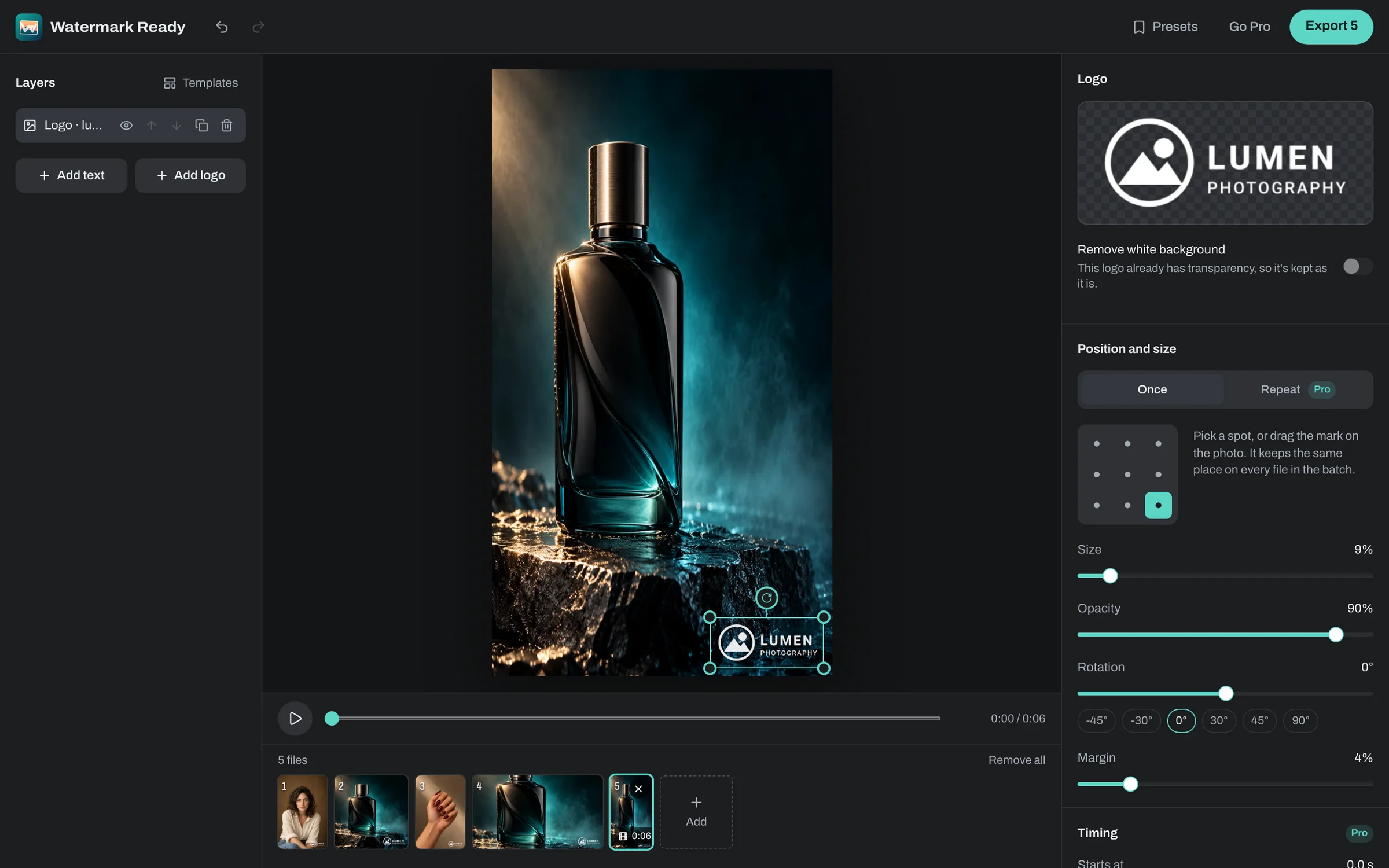
Prepare the logo file
Start with the right file and the rest is easy. A PNG with a transparent background is ideal, because you see the logo and not a box around it. If all you have is a JPG on white, that works too: the white background is removed automatically when you add it.
Use the simplest version of your logo. An icon or short wordmark reads at small sizes, while a full logo with a tagline turns into a smudge in the corner of a phone screen. Make the file around 1,000 pixels across or more so it stays sharp on 1080p and 4K video.
Think about contrast too. Footage moves between light and dark scenes, and the logo is drawn in its own colors, so a white logo with a thin dark outline, or a logo inside a solid badge, stays visible throughout.
Open the video and add the logo
Open Watermark Ready in a recent version of Chrome, Edge, Safari or Firefox and use Choose a video. MP4, MOV and WebM files open; H.264 video works in all of these browsers, and H.265 where the browser can decode it. Phone clips filmed sideways come out upright.
Use Add logo and pick your file. On the free plan you can export one video at a time, up to 30 seconds long; longer videos, and batches of up to 20 placed with one design, need Pro. The video is processed on your device and never uploaded.
If you have the same video in vertical and horizontal versions, use one design for both. The logo keeps its proportion on each, so your branding matches across platforms.
Choose a spot that stays visible
Placement matters more on video than on photos, because apps and players put their own controls over the picture. On a horizontal video, the bottom of the frame holds the progress bar, play controls and captions, so a top corner is usually the cleaner choice.
On vertical video for TikTok, Instagram Reels or YouTube Shorts, the apps put buttons down the right side and the caption and account name along the bottom. That usually leaves the top left as the clearest corner. Layouts vary by app and change over time, so treat this as a starting point and check the real thing.
Use the Position grid to snap the logo to a corner, then increase the margin so it sits comfortably inside the frame rather than against the edge. Because the margin is measured from the shorter edge, the same setting works on vertical and horizontal clips.
Set the size and opacity
A corner logo should be noticed without stealing attention. Set Size so the logo is roughly 8% to 12% of the frame's shorter edge, then set Opacity between 60% and 80%. A solid badge logo can go to full opacity, since it's designed to sit on top of things.
To picture it, 10% of the shorter edge on a 1080 by 1920 vertical clip is about 108 pixels, easy to see on a phone without crowding the frame. Because Size follows the shorter edge, the logo keeps that proportion on a 4K clip too.
Rotation is rarely useful for a video logo, so keep it level. If you also want your handle or website on screen, add it as a text layer and match the logo's opacity so the two read as one.
Time it with fades (Pro)
With Pro, each layer can start and end at a chosen second and fade in or out. A simple approach is to keep the first few seconds clean so the opening shot lands, fade the logo in, and fade it out before an end screen. For a 60-second clip, the timing might look like this:
- Logo: starts at 3 seconds with a one-second fade in, and ends at 55 seconds with a one-second fade out.
- Handle or website text: starts at 50 seconds and stays to the end.
On the free plan, every layer stays on for the whole clip. For a simple corner logo, that's often all you need.
Export settings that keep the quality
Select Export and choose a quality. Standard keeps the original size in H.264, which plays everywhere and keeps the most detail. Smaller file uses H.265 where your browser can encode it, otherwise H.264, and caps the size at 1080p for lighter files.
Use Standard for the copy you upload or keep as a master, and Smaller file for clips you send in chats or store in bulk. You can also set the size to 1080p or 720p yourself. If you're not sure, export Standard first, since you can always make a smaller copy from the original later.
The frame rate and length stay as they were, the sound is copied as it is when MP4 can hold it, and HDR footage becomes standard range. Long or 4K videos are best done on a computer, because phones have less memory.
Check before you post
Watch the exported MP4 from start to finish, paying attention to the brightest and darkest scenes and the last few seconds. Then post it privately, or save it as a draft, in the app you'll use, to see whether any buttons or captions cover the logo. If they do, move the logo or raise the margin and export again.
Keep your original, unbranded file. The logo is part of every frame of the copy, so the original is the only way to make a clean version or a different one later.