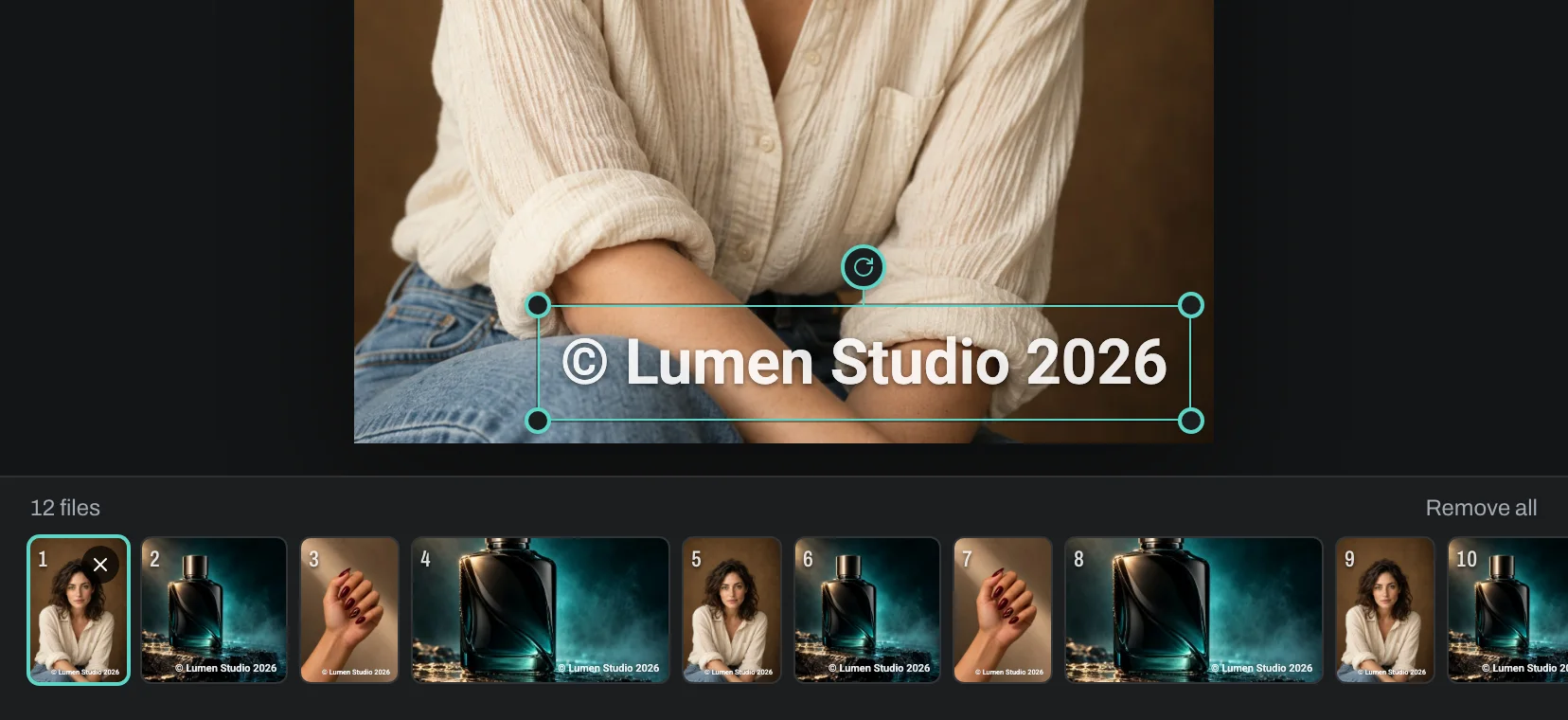
One design for every shape
A real set mixes shapes and sizes: a vertical portrait next to a wide landscape, a 12-megapixel phone photo next to a much larger camera file. A watermark sized in pixels would look huge on one and tiny on another. Here the size and margin are measured from each photo's shorter edge, so the mark has the same weight on all of them.
Position works the same way. A mark anchored to the bottom right corner sits the same relative distance from that corner on every photo, whatever its proportions.
Check a few photos before the whole set
A batch design has to work on every photo, not just the one you set it up on. Before exporting, look at the brightest, the darkest and the busiest photos, and at one of each orientation. If the mark fades on a bright one, add an Outline or Shadow in the Style panel or raise the opacity a little.
Don't tuck the mark into a dark patch that only one photo has. A corner with a margin is predictable across a set, and if one photo has its subject in that corner, export it on its own with the mark moved.
Getting the files out
A batch arrives as one ZIP. In Chrome and Edge you can pick a folder instead and the copies are written straight into it, and on a phone you can share them or save them to your photos. Every file shows its own progress, and you can cancel at any point.
Each copy keeps its original name plus a suffix, like IMG_1234_watermarked.jpg. You can change the suffix or add a prefix, such as a client or job name, before you export. Your originals are never changed.
Resize and clean up in the same pass
A batch is a good moment to make web-ready copies. Keep the original size for print, or cap the longer edge at 3840, 2048 or 1080 pixels for websites and social posts. Photos already smaller than the cap are never enlarged.
The location is always removed from the copies, which matters when you post photos taken at home or at a client's property. JPEG copies can keep the date and camera details if you want them. Photos are processed in your browser and never uploaded, so a big set doesn't wait on an upload.
Dates on job and property photos
For site visits, inspections and deliveries, a date on every photo saves explaining when each one was taken. With Pro, write {date} or {time} in a text layer and each copy shows the moment its own photo was taken, read from the photo's EXIF data. Photos with no recorded date, such as screenshots, get none.