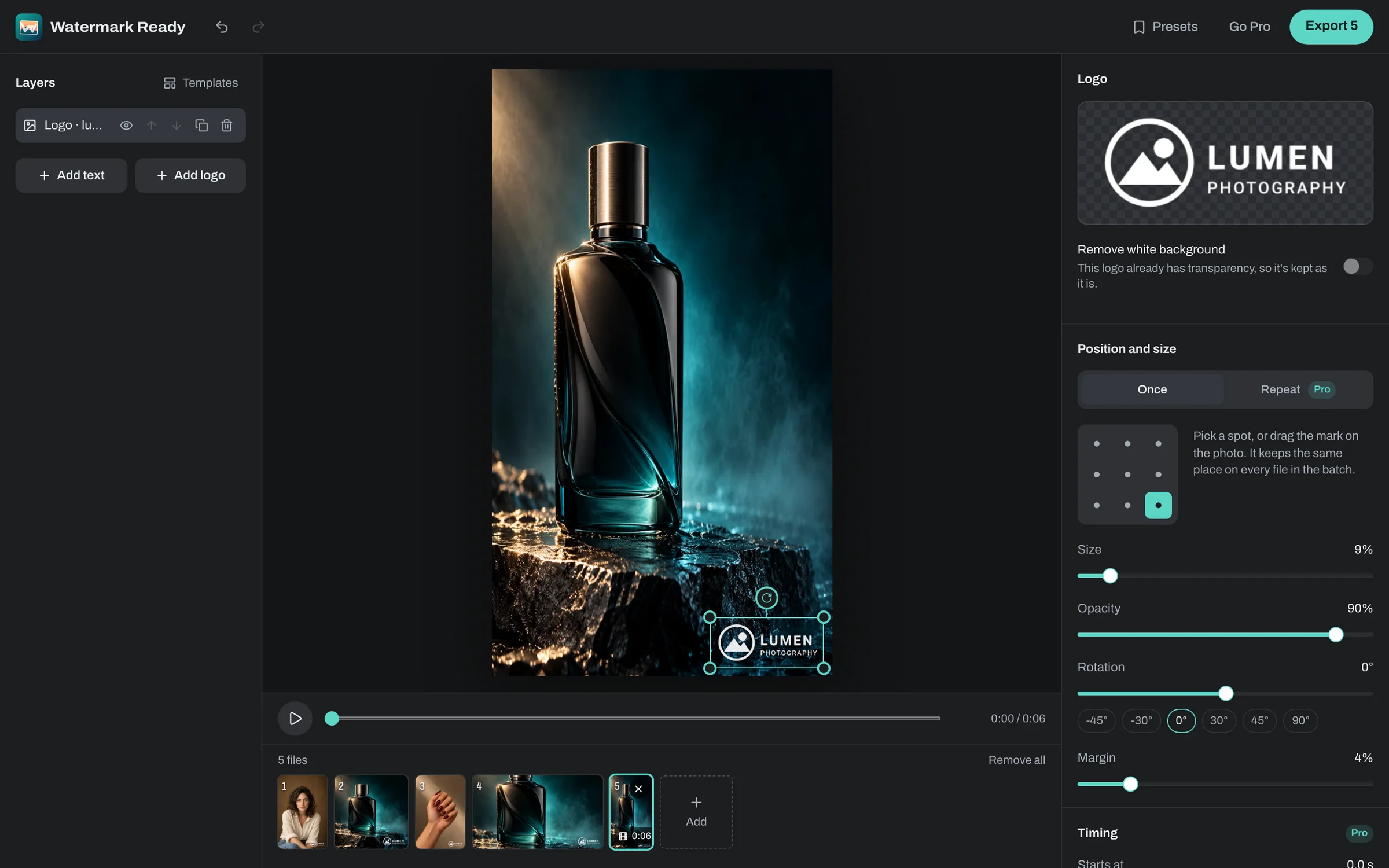
A watermark that stays with the video
The watermark is drawn into the picture of every frame, not added as a separate layer or caption track. Nobody can switch it off in a player, and it can't be taken out of the copy later. Keep your original file, and export again whenever you want a different mark or a clean version.
Where to put it in the frame
For credit, a small mark in a top corner works on most videos, because the bottom of the frame is where players and apps put their controls and captions. Use the margin to keep it comfortably inside the edge.
If your clips get cropped and reposted, a corner mark is the first thing to go. A larger mark nearer the middle of the frame, at 30% to 50% opacity, is much harder to cut out, at some cost to how the video looks.
What stays the same and what changes
The frame rate, length and sound are kept. Phone videos recorded sideways come out upright, with the watermark placed on the upright picture.
The copy is always an MP4. Standard uses H.264 at the original size, which plays everywhere. Smaller file uses H.265 (HEVC) where your browser can encode it, otherwise H.264, at up to 1080p, and you can also set the size to 1080p or 720p yourself.
Show the mark only when you want it
With Pro, each layer can start and end at the second you choose, and fade in or out. Keep the opening title clean and fade your name in after it, or show your handle only in the last few seconds.
On the free plan, a design holds two layers that stay on for the whole clip, enough for a logo and a line of text. Pro raises that to six layers, each with its own timing.
What you need to watermark videos online
Video needs a recent version of Chrome, Edge, Safari or Firefox. H.264 video opens in all of them, and H.265 opens where the browser can decode it. The video is processed on your device and never uploaded.
Short clips work well on a phone. Long or 4K videos go better on a computer, because phones have less memory to work with.